
By Marek Pesan, TaleReady developer ·
Your paid podcast, on your wrist.
Many memberships give you a private RSS link for your own podcast app. Paste it into TaleReady, play episodes on iPhone, or send one to Apple Watch with a single tap and listen offline with Bluetooth headphones. No account, and the link stays on your iPhone.
1. Get your private RSS link
Look in your membership for an option such as “listen in other podcast apps”, “private RSS feed”, or a button for Apple Podcasts or Overcast, and copy the link. It usually contains a long personal key. Treat it like a password and do not share it.
- Patreon: if the creator allows it, members can copy a private audio RSS link from the creator’s page (Patreon help).
- Supercast: the private feed is in your subscriber dashboard and in the welcome email (Supercast help).
- Substack: paid podcast subscribers receive a private RSS feed for another podcast player (Substack podcast FAQ).
Other platforms work too, as long as they give you a link to an RSS feed with MP3 or M4A episodes. Ordinary public podcast feeds work the same way; TaleReady simply has no podcast directory, so you always paste the link.
2. Add the feed
In TaleReady on iPhone, open Library, tap + and choose Add Feed by Link. Tap Paste, or type the link and tap Add. Links starting with feed:, itpc:, pcast:, or podcast: work too. The podcast then appears under Podcasts in your Library, newest episode first.
To check for new episodes, pull down on the podcast or choose Check for New Episodes from its options.
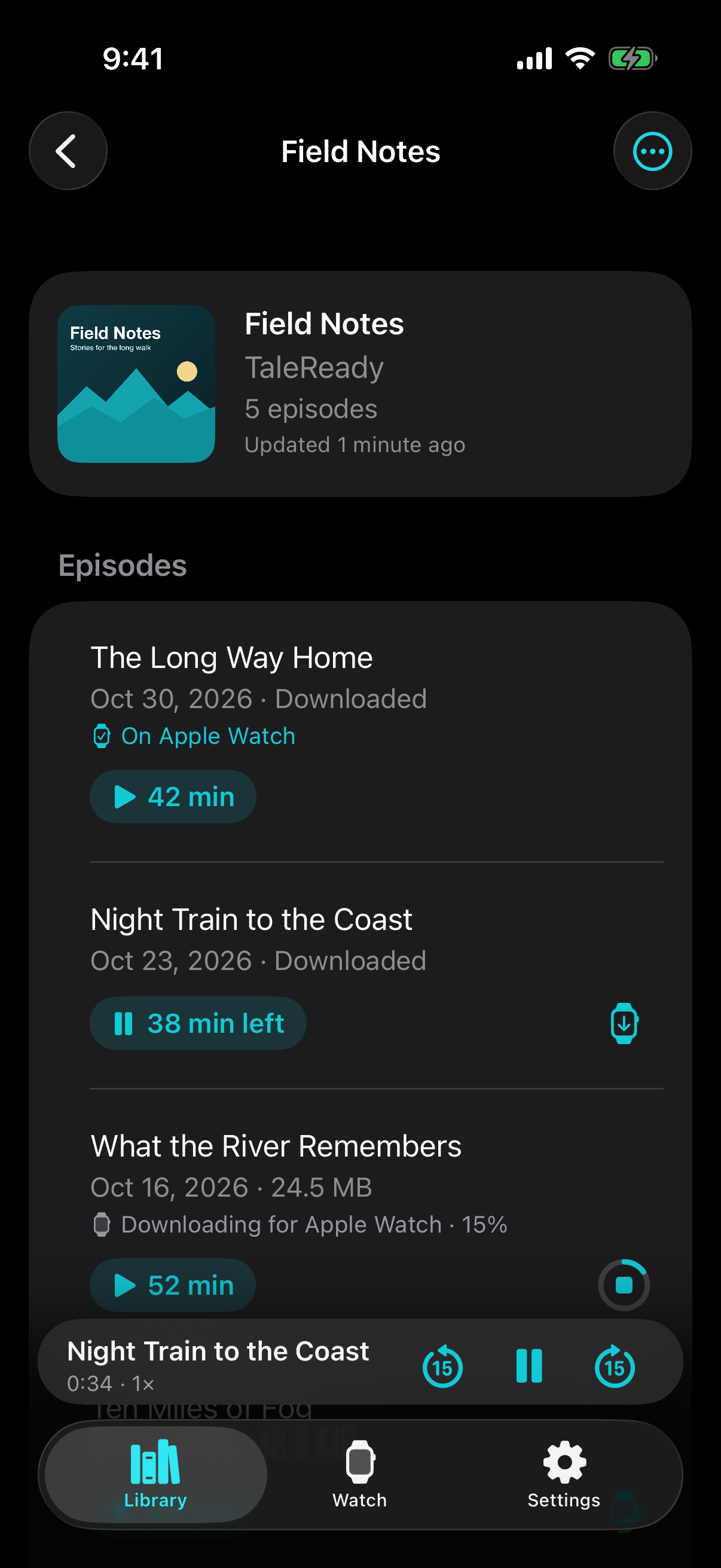
3. Play it, or send it to Apple Watch
Every episode has two buttons. The play button under the title plays it on iPhone; an episode that is not downloaded yet downloads first and starts by itself, unless something else is playing. TaleReady remembers where you stopped in each episode.
The Apple Watch button on the right downloads the episode and sends it to your Watch. The row shows the progress and then “On Apple Watch”. Tap several episodes and they are sent one after another. Keep the iPhone near the Watch and TaleReady open until the row confirms it.
Without Pro, an episode is sent with up to the next hour from where you stopped; shorter episodes go whole. Pro sends whole episodes. Touch and hold an episode for more choices, such as downloading to iPhone only.
4. Played episodes clean up after themselves
A day after you finish an episode, its audio is removed from iPhone and Apple Watch, and the episode stays in the list as played. Audiobooks are never removed on their own. This is free and on by default; switch it off in Settings under Remove Played Episodes.
Settings also shows how much space audiobooks, podcast episodes, and audio on Apple Watch take, and how much is free on the Watch.
What does not work
Feeds that ask for a username and password. Use the private link that already contains your key; TaleReady tells you if a feed asks for a login. Shows bought inside Apple Podcasts or Spotify are meant for those apps and usually have no link you can copy. Video episodes are skipped.
Before a longer outing, check what is ready using the offline Watch checklist. Requirements are on the compatibility page.
Get TaleReady free on the App Store →